Dockerized pihole: this is the way

I’ve been using pi-hole for a time now, installed on a raspberry pi 3. Time has come to change my NAS (the launch date on this NAS was late 2011). It has served me well, and I expect the same on the next one I’m buying. And the thing is… the new one comes with the “Container Station” capability, that is, running containers (LXC or Docker). And I love my pihole on raspberry, but it’s time to consolidate things. Let’s run pi-hole directly in the Qnap!

First things first, Disclaimer: I’m not responsible of what you do. This operation is almost risk free, but dns resolving may stop working, and your granny can blame you for some pages that worked before you changed things. But you have to break a few eggs to make a tortilla…

Basic things

This is pi-hole official docker image page. It has moved from the 4.x branch to 5.x recently, and the previous block lists are not compatible with the new version, so what I will do is a new installation from scratch.

All data will be persisted in a Qnap volume, so it will be protected with a raid, snapshots… up to you.

You need to install Container Station App on your Qnap as well as a virtual switch to be able to use the Bridged network as option, that will allow you to put an ip from your LAN range.

The Process

It is pretty straight process: open Container Station and go to Create (+). You will be prompted to specify a docker image from a search. Searching for pihole in Docker Hub shows some possible candidates but the official one (pihole/pihole) tends to be the first match, with lots of stars.

Searching the pihole image in Docker Hub

I already own this image so the option I can see is Create on pihole/pihole, while for the images that i don’t own I can see Install. So to continue you have to press the Install/Create option for pihole/pihole. A new window will appear asking for the version (container tag) that you want to use for your deployment. For this example we will use v5.1.2.

After a the Disclaimer window about Qnap being not liable for any consequences for third party vendor software you will be using, We finally arrive at the Create Container Window, that is where we will focus our attention now.

First Step: Name and hardware resources to assign. I’ve limited the cpu to 25% and ram to 256MB but it’m sure it will work with even less resources.

Now we go to Advanced Settings, where we will focus in:

Environment

Create the next environment variables, choosing your desired DNS upstream servers, setting the network ip where it will listen and a password to be used in the web interface. This last environment variable is optional, as if you don’t specify any password yo can still enter the web interface but you have to go to the container’s starting log and search for a password generated for you in the initialization of the service. A comprehensive list of available environment variables can be found here

Environment VariableValue
ARCHamd64
VERSIONv5.1.2
DNS1See below
DNS2See below
WEBPASSWORDoptional
DNSMASQ_USERpihole
ServerIPyour_ip
TZUTC
Environment values for your dockerized pihole

As for the values of your DNS upstreams: choose two of the available listed here

Networking

As for networking, you can assign the hostname of the container. The most important thing is to change the network mode to Bridge, as thanks to the virtual switch (create it if you haven’t yet) you can assign a static ip matching the local lan where you are. Ensure that the specified ip matches with the one you have specified in environment variables.

Shared Folders

As we are on a NAS, we can persist the information on a volume so we can mantain our data when we kill our pihole container to upgrade the version (do not use the upgrade options in the container, just upgrade the whole container). We need first to create 2 folders in the Container volume

  • /pihole/etc-pihole
  • /pihole/etc-dnsmasq.d

And to persist the information to those folders, in Shared Folders you have to add:

PathShared Folder
/etc/pihole/Container/pihole/etc-pihole
/etc/dnsmasq.d/Container/pihole/etc-dnsmasq.d
Set the paths to persist the pihole data

After that we are ready to Create it.

Now it’s time to configure the DHCP server from your LAN to point the DNS server option to pi-hole.

Now you can open the web interface from pihole, sit and enjoy looking at the Queries Blocked counter rising up.

Shrinking your Docker containers using Multistaging

Your average container may waste a lot of space if you are not careful. Yes, you can apply some good patterns and, still, you will end with a container that weights hundreds of megabytes, maybe more. Even if you just want to run a 6 MB binary. What can we do?

Note: all files used in this post are available here

Let’s begin with a basic http server done in go.  This go http server example is inspired in this golang tutorial.

package main

import (
   "fmt"
   "log"
   "net/http"
)

func handler(w http.ResponseWriter, r *http.Request) {
   fmt.Fprintf(w, "I'm a web server running in go!")
}

func main() {
   http.HandleFunc("/", handler)
   log.Fatal(http.ListenAndServe(":8080", nil))
}

The dystopian approach

Let’s begin with a classical example where even it works, the image is too huge. The dockerfile is as follows:

FROM ubuntu
RUN apt-get update -y -q && apt-get upgrade -y -q
RUN DEBIAN_FRONTEND=noninteractive apt-get install --no-install-recommends -y -q curl build-essential \
    ca-certificates git && rm -fr /var/lib/apt/lists/*
RUN curl -s https://storage.googleapis.com/golang/go1.10.1.linux-amd64.tar.gz| tar -v -C /usr/local -xz
ENV PATH $PATH:/usr/local/go/bin
RUN adduser --system --home /app user
ADD go-http-server.go /app/
WORKDIR /app
RUN go build -o main .
USER user
CMD ["./main"]

Even that there are some good practices here, like installing some dependencies in one line or using an alternate user to run the go binary the overall strategy is a disaster because you don’t need to run an Ubuntu distribution, update the system, upgrade the system, install all required build libraries and download all the golang binaries to finally be able to run the 6 MB executable file. If you build the previous example you will end with a 705MB container.

$ docker build -t golang:ubuntu . -f Dockerfile.ubuntu
$ docker images
REPOSITORY    TAG        IMAGE ID       CREATED          SIZE
ubuntu-http   standard   fb558c6a0209   2 minutes ago    705MB

And we can do it better right?

The Alpine Linux Approach

An Alpine Linux container as replacement always allows your containers to be lighter. Of course, some of your initial commands may vary as some syntax may be different. There is always an Alpine Linux Image ready for your project. For this example, I will use an image called golang:alpine, a small container with the golang already installed.

FROM golang:alpine
RUN mkdir /app
ADD go-http-server.go /app/
WORKDIR /app
RUN go build -o main .
RUN adduser -S -D -H -h /app user
USER user
CMD ["./main"]

By assuming that the golang is present in the image we just compile the http server, create the user that will run the app and we are done. If we build the image we will end with a 357MB image. Half of the last approach, but still large if we want to run just a 6MB http server, right?

$ docker build -t golang:standard . -f Dockerfile.standard
$ docker images
REPOSITORY    TAG        IMAGE ID       CREATED          SIZE
golang        standard   4121327179ac   3 seconds ago    357MB

And then, there is…

Multistage container building

Imagine that you can get rid of everything that you don’t need in your container. I’m talking about all the libraries needed to build the binary, in this case. As golang is compiled statically, you can run it in an Alpine basic image. But still, you need the golang binaries to compile the code, right? Take a look at the next Dockerfile:

FROM golang:alpine as builder
RUN mkdir /build
ADD . /build/
WORKDIR /build
RUN go build -o main .
FROM alpine
RUN adduser -S -D -H -h /app user
USER user
COPY --from=builder /build/main /app/
WORKDIR /app
CMD ["./main"]

What this dockerfile does is to use the golang:alpine image to build the binary in the /build directory, and then, define a second Alpine container that will get the resulting binary from the /build directory (we already know that the output binary will be called main) and copy it in the /app directory on the second Alpine Linux. How good is that solution?

$ docker build -t golang:multistage . -f Dockerfile.multistage
$ docker images
REPOSITORY TAG      IMAGE ID     CREATED       SIZE
golang     standard aab982a2c2b2 3 seconds ago 12.9MB

We have reduced our container from 705MB to 12.9MB! But we can do even better!

FROM scratch

Well, we have removed all the build dependencies from our container so it is lighter. What can we do next?

We can use a reserved, minimal image called scratch to use it as a starting point to build our containers:

FROM golang:alpine as builder
RUN mkdir /build
ADD go-http-server.go /build/
WORKDIR /build
RUN CGO_ENABLED=0 GOOS=linux go build -a -installsuffix cgo -ldflags '-w -s' -o main .
FROM scratch
COPY --from=builder /build/main /app/
WORKDIR /app
CMD ["./main"]

As you can see in the go build execution we are trying to optimize the compilation (by eliminating debug) information. The result will be even smaller than using Alpine Linux!

$ docker build -t golang:scratch . -f Dockerfile.scratch 
$ docker images 
REPOSITORY TAG      IMAGE ID     CREATED        SIZE
golang     standard 52cd30af14f1 39 seconds ago 5.34MB

The choice is yours!

$ docker images 
REPOSITORY TAG        IMAGE ID     CREATED           SIZE
golang     scratch    52cd30af14f1 36 minutes ago    5.34MB
golang     multistage aab982a2c2b2 42 minutes ago    12.9MB
golang     standard   4121327179ac About an hour ago 357MB
golang     ubuntu     fb558c6a0209 About an hour ago 705MB


One-process-per-container vs many-process Pattern

Recently I had to defend the “one process per container” from having “more than one process running inside the container”. It was almost like thinking of it more like a virtual machine instead of a container. My main argument to confront this was related to the modularity pattern in infrastructure as code, where you must think which are the most valuable (simple) usable blocks that you can have as you design your architecture. In that scenario, having more than one process that can be splittable between containers was in direct violation of this pattern. Well, I’m not saying that no rules can be bend if the scenario requires it, but in a scenario where the communication between the 2 processes was done by TCP I found that a split approach was more helpful here.

But I couldn’t say nothing more than it was harder to debug and worse to be kept alive, without explaining more myself. So I did a simple example to show this.

Single process docker container

As a first scenario, We have a really simple container based on alpine that will just run a sleep command of 120 seconds and then it will exit.

FROM alpine
ENTRYPOINT ["sleep","120"]

After building it and launching, a docker ps will show:

CONTAINER ID IMAGE        COMMAND     CREATED       STATUS 
2e11997210b3 simple_sleep "sleep 120" 3 seconds ago Up 2 seconds

And if we take a look inside the container we will see that in the PID tree there is only our entrypoint defined in the dockerfile: the sleep. And more significant, it will have the PID number 1. After the sleep is done, the container exits itself. As a comment: you cannot perform a “kill -9 1″ inside the container to terminate the running sleep because the kill command will not be understood by the sleep process.

$ docker exec -ti 2e11997210b3 sh
/ # pstree -p
sleep(1)

And for that we can use a little help called tini, that is nowadays a part of docker and can be used just by adding a –init in the docker run invocation. This will spawn a process with the PID 1 called init that will handle the process defined by the dockerfile’s entrypoint. The container this time will terminate in 2 cases: either if we kill the process or the sleep counts to 120 (process finishes in a natural way).

/ # pstree -p
init(1)---sleep(6)
/ # kill 6
$ (killed)

Here you can see a nice explanation from Thomas Orozco about what is the advantage of tini and why it is being used in the jenkins containers.

As a partial recap, we can see that if the defined entrypoint process terminates (manually or by something that happens) the container exits.

Handling multiple processes

For this scenario, we will use supervisord. We will add the supervisor installation, create the config directory and copy the config file in order to configure the multiple services that we want to run inside the container.

FROM alpine
RUN apk update && apk add --no-cache supervisor
RUN mkdir -p /etc/supervisor.d
COPY supervisord.conf /etc/supervisord.conf
ENTRYPOINT ["/usr/bin/supervisord", "-c", "/etc/supervisord.conf"]

In it, Instead of just 1 sleep we will have 2 concurrent sleep processes. Supervisord by default autorestarts the failed processes. For this demonstration, I have deactivated this behavior by specifying autorestart=false in the config file.

[supervisord]
nodaemon=true

[program:sleep1]
autorestart=false
command=sleep 120

[program:sleep2]
autorestart=false
command=sleep 120

After building and running the multiple-process container, if we take a look inside we can see the tini process with PID 1 handling supervisord with PID 7, that handles the 2 sleep processes with PID 9 and 10. 

/ # pstree -p
init(1)---supervisord(7)-+-sleep(9)
`-sleep(10)

If we kill one of the sleep process (9)

/ # kill 9
/ # pstree -p
init(1)---supervisord(7)---sleep(10)

the container will still be running. Killing the other sleep process (10)

/ # kill 10
/ # pstree -p
init(1)---supervisord(7)

the container will be still UP without any process handled by supervisord. But if we kill supervisord the container will exit as no processes will hang from the tini process. Even if bot sleep processes finish naturally they will leave only the supervisor running forever alone.

Think of it as a proof of something terrible happening inside your container but as long as the supervisord is OK docker will not terminate itself, leaving a failed container UP.

Rick And Morty Gif Butter

– “But you deactivated autorestart! this is not the usual behavior” 

Well, think of an infinite loop crash and restart. The container itself is not suitable for service, and you will not know what is happening because everything is fine from outside. You can add all the healthchecks that you want, you will just perform overengineering and feeding the monster while keeping it simple and modular will ensure the resilience, another Infrastructure as Code pattern.


Minikube and Mojave: Virtualbox kext problem

Recently I’ve updated my Macosx to Mojave. Virtualbox stopped working because the installed version was not compatible with the newly upgraded 10.14 (Virtualbox prior to 5.2.14+ needed for Mojave),  so Minikube stopped working too. In that case, to solve that I just upgraded Virtualbox to the new 6.0 (released on December 18th), and it did the trick.

But, what if I have a new installation of Mojave from scratch? well, I found myself in a total different situation…

In a brand new setup, with the most recent docker client and the Minikube binary I just executed a minikube start. Well, it complained that it there was no Virtualbox installation. True, I forgot to install it! I Downloaded the last available version (5.2.22 when I was writing this post) and I got an installation error. The kernel extensions cannot be loaded. What was wrong here?

Well seems that since 10.13, Macosx introduces some restriction on how developers can load their kernel extensions, as they have to be signed. The Virtualbox extensions are not an exception, so they are signed too. But seems that something is wrong with the installer itself (provided by Apple, not by Oracle, the owner of the code). There is a step where it is supposed to appear a dialog asking you if you accept the loading of the kernel extension signed by Oracle, but it doesn’t show up, so the installation fails over and over again. And that makes Minikube sad.

The solution, after following some threads of despair and sorrow, was like this:

Go to System Preferences > Security & Privacy and in the bottom, you have to find a message indicating that “System software from developer was blocked from loading” with an Allow button to accept it. Press the allow and it will work (no need to reinstall).

tn2459_approval

But… this didn’t happen to me… until I performed a reboot. After the reboot, the message with the button in “Security & Privacy” section appeared. And Virtualbox could start. And my Minikube was happy again.

How I meet your Cluster (II): Kubernetes on Arm (Raspberry Pi 3)

In the last post I described the construction of the Death Star a 3xRaspberry Pi3 cluster and how I did the basic communication between them. In this post, I’ll describe the software construction by deploying a working Kubernetes cluster. I wanted to accomplish some goals along:

  • Use the latest Raspbian Image available (2018-04-18)
  • Use the latest Kubernetes version available for arm (1.10.2)
  • Use the latest Docker-CE client available for  arm (18.03.1-ce)
  • All truth stored in Git (all steps done are stored in Git)

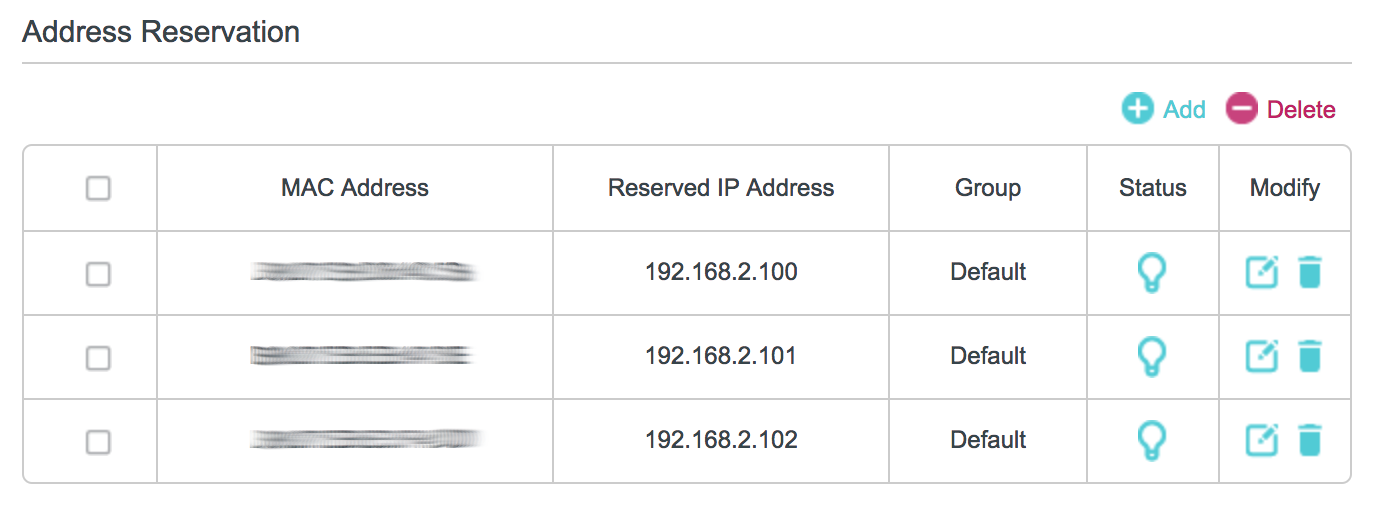
I had to recreate the cluster lots of times until I achieved a stable situation with no CrashLoopBackOff. And that is a lot of SD image burning… So after burning the image and creating the ssh file in /boot to allow ssh remote connections, I didn’t configure any static IP every time. Instead, I added all MAC address from the Raspberries to obtain always the same ips from the DHCP server present in the router (Tplink MR-3020). That saved me a lot of time!

mac_address

Now We will start. With Ansible.

Ansible is software that automates software provisioning, configuration management, and application deployment. Following the Devops Gitops path, it allows us to convert every step we have to do to configure the Raspberries into code, thus giving us the power to repeat every step, paralellizing on different computers if needed and removing manual mistakes. So after we know what we have to do to create our cluster we will convert all steps into ansible playbooks so we can launch the cluster provisioning from a central computer.

After some search about similar projects (Kubernetes on Arm with Ansible) I liked the Ro14nd approach, so I have based my project on his work, but lots of things had to be changed for me to run it to the latest version, plus all the modifications I was planning to do. So I created https://github.com/stealthizer/pi-kubernetes-lab to store all tasks that I want to run for this project.

The objective: The Kubernetes Cluster

The best way to describe this project is by looking at this slide:

Kubernetes High Level component architecture
Kubernetes High Level component architecture | Slide from this presentation from Lucas Käldström (@kubernetesonarm)

So we are going to create a Kubernetes Master, that is a set of containers running the etcd-master, the kube-apiserver, the kube-controller, the kube-dns, the kube-scheduler, a kube-proxy and a CNI of our choice (in this case I will use Flannel). But first we will install some common software to all nodes in the cluster.

Basic Common Setup

The first thing that we will do is to customize the hosts file that we will use in all steps. It describes how Ansible will locate all your servers and act accordingly for each role described. My hosts file will be:

[raspberries]
192.168.2.100 name=master
192.168.2.101 name=slave1
192.168.2.102 name=slave2

[master]
192.168.2.100

[slaves]
192.168.2.101
192.168.2.102

Once described in ther hosts file, to setup the basic (common) configuration for all Raspberries we will execute:

$ ansible-playbook -k -i hosts base.yml

That will ask us for the default password in raspbian for user pi (raspberry) and will begin to perform all tasks described in the manifests for the base role. The -k is for Ansible to ask us for a ssh password. As the first task that will execute is to copy your ssh key to the authorized hosts on all raspberries it will not be needed anymore. The base tasks will also disable the wifi and bluetooth modules (they won’t be needed in this setup), disable the hdmi output (we are running in headless mode), change the timezone, the hosts file, disable the swap, minimizing the amount of shared memory that the gpu will use to be available for the system, update the base system, add the repositories needed to install docker-ce and kubernetes and reboot. Once they are available again we are ready to continue.

The Master Node

The continue with the Master node creation we will execute:

$ ansible-playbook -i hosts kubeadm-master.yml

This task will configure the Master node. It includes installing the kubernetes version (specified in the roles/kubernetes/defaults/main.yml file, for me its 1.10.1), configure iptables to allow the interface cni0 to be able to forward, configure the environment fot the kubectl executions and execute the command to create the master node

kubeadm --init --config /etc/kubernetes/kubeadm.yml

It is wise to use the kubeadm.yml file. Of course you can pass parameters to the executable.

The podSubnet in the config file (or –pod-network-cidr parameter) needs to be specified ot the CNI will not run. It defaults to 10.244.0.0/16. Also the ServiceSubnet (or –service-cidr) if not specified will default to 10.96.0.0/12.

After the init process (can take a long time, more than 15 minutes if you don’t have the Docker images already downloaded) will install the CNI (Flannel in this example) and download the config file to use this cluster to /deployment/run/admin.conf.

If everything was ok, we can copy the admin.conf to your ~/.kube/config and use kubectl to review the status of the cluster. Some example output for debugging:

$ kubectl get nodes
NAME   STATUS ROLES  AGE VERSION
master Ready  master 31s v1.10.2
$ kubectl get po --all-namespaces 
NAMESPACE   NAME                          READY STATUS   RESTARTS AGE
kube-system etcd-master                    1/1  Running  7        1m
kube-system kube-apiserver-master          1/1  Running  7        2m
kube-system kube-controller-manager-master 1/1  Running  0        1m
kube-system kube-dns-686d6fb9c-68h5q       3/3  Running  0        2m
kube-system kube-flannel-ds-d5m8d          1/1  Running  1        2m
kube-system kube-proxy-626jw               1/1  Running  0        2m
kube-system kube-scheduler-master          1/1  Running  0        1m
$ kubectl get all 
NAME       TYPE      CLUSTER-IP EXTERNAL-IP PORT(S) AGE
kubernetes ClusterIP 10.96.0.1  <none>      443/TCP 57s

If the node Master is in status Ready we can proceed to create the worker nodes.

But if there is any problem we can use the kubernetes-full-reset ansible role to wipe out all Kubernetes configuration and try again

$ ansible-playbook -i hosts kubernetes-full-reset.yml

The Worker Nodes

The Worker nodes are the one that will run the pods in the Cluster. To add them to the existing cluster we will execute:

$ ansible-playbook -i hosts kubeadm-slaves.yml

This will execute kubeadm with the join action on all slaves declared in the hosts file using a token created in the Master creation step.

$ kubeadm join --token=<token> --discovery-token-unsafe-skip-ca-verification master:6443

Once this process is finished (a few minutes) you can check the status of your cluster with:

$ kubectl get nodes
NAME   STATUS ROLES  AGE VERSION
master Ready  master 7m  v1.10.2
slave1 Ready  <none> 1m  v1.10.2
slave2 Ready  <none> 2m  v1.10.2

And we can see all the needed pods to run the Kubernetes Cluster:

$ kubectl get pods --all-namespaces
NAMESPACE   NAME                           READY STATUS  RESTARTS AGE
kube-system etcd-master                    1/1   Running 7        39m
kube-system kube-apiserver-master          1/1   Running 7        40m
kube-system kube-controller-manager-master 1/1   Running 0        39m
kube-system kube-dns-686d6fb9c-68h5q       3/3   Running 0        40m
kube-system kube-flannel-ds-4qffk          1/1   Running 0        33m
kube-system kube-flannel-ds-d5m8d          1/1   Running 1        40m
kube-system kube-flannel-ds-qbgrd          1/1   Running 2        34m
kube-system kube-proxy-5h7qj               1/1   Running 0        34m
kube-system kube-proxy-626jw               1/1   Running 0        40m
kube-system kube-proxy-m8wlt               1/1   Running 0        33m
kube-system kube-scheduler-master          1/1   Running 0        39m

And all services running:

kubectl describe services --all-namespaces
Name: kubernetes
Namespace: default
Labels: component=apiserver
 provider=kubernetes
Annotations: <none>
Selector: <none>
Type: ClusterIP
IP: 10.96.0.1
Port: https 443/TCP
TargetPort: 6443/TCP
Endpoints: 192.168.2.100:6443
Session Affinity: ClientIP
Events: <none>

Name: kube-dns
Namespace: kube-system
Labels: k8s-app=kube-dns
 kubernetes.io/cluster-service=true
 kubernetes.io/name=KubeDNS
Annotations: <none>
Selector: k8s-app=kube-dns
Type: ClusterIP
IP: 10.96.0.10
Port: dns 53/UDP
TargetPort: 53/UDP
Endpoints: 10.244.0.2:53
Port: dns-tcp 53/TCP
TargetPort: 53/TCP
Endpoints: 10.244.0.2:53
Session Affinity: None
Events: <none>

At this point we have a Kubernetes Cluster running the latest available version.

Docker Images: Save/Load

How can I move a Docker image between servers without using a Registry?

As described here a Docker image is an ordered collection of root filesystem changes and the corresponding execution parameters for use within a container runtime.

All images available to Docker locally are stored in the same place, but the path depends on the operating system and version. In Linux (Ubuntu in my case) the images are stored in  /var/lib/docker/<storage driver>, where storage driver can be found by executing docker info and searching for the Storage Driver part.

# docker info
Containers: 0
 Running: 0
 Paused: 0
 Stopped: 0
Images: 1
Server Version: 18.03.1-ce
Storage Driver: overlay2

So the final path where all images are stored is /var/lib/docker/overlay2/

root@stealth-linux:/var/lib/docker/overlay2# ls -alh
total 28K
drwx------ 4 root root 16K Apr 28 22:28 .
drwx--x--x 14 root root 4.0K Apr 28 21:56 ..
drwx------ 3 root root 4.0K Apr 28 18:02 30fc1f2e5b91a9a481c8069a0255d8b521bab760ffd9a258131d5955db1182ab
drwx------ 2 root root 4.0K Apr 28 22:28 l

That large hash identifies one image stored locally. Inside there is a set of layers that represent the filesystem. As this hash represents in this case an Alpine Image, everything is stored in one layer. Let’s see one example a little more complex: stealthizer/whalesay.

I’ve created a version of docker’s whalesay container based on Alpine Linux, because the original one is about 200 MB where Alpine Linux can do the same with less than 40MB. You can find the sources here or pull the stealthizer/whalesay image directly. Once the image is created/pulled we can see that the directory where the layers are stored has more hashes than images.

root@stealth-linux:/var/lib/docker/overlay2# ls -alh
total 44K
drwx------ 8 root root 16K Apr 28 22:44 .
drwx--x--x 14 root root 4.0K Apr 28 21:56 ..
drwx------ 4 root root 4.0K Apr 28 22:44 1bc76584a146fbd97c2abe3ca392d1bf1cee71337b8b24baecba67b69342401f
drwx------ 3 root root 4.0K Apr 28 18:02 30fc1f2e5b91a9a481c8069a0255d8b521bab760ffd9a258131d5955db1182ab
drwx------ 4 root root 4.0K Apr 28 22:44 7469b9934e5e603c06e4a769d5cc655dc84ea9ba94a879607e35b6ec2123737e
drwx------ 4 root root 4.0K Apr 28 22:44 9a663a69cfc8ae0188255655d8c4cae792109ce40dafe7be4fe6b92fdb77a74a
drwx------ 4 root root 4.0K Apr 28 22:44 e565bdb678f61689a56619eee37f3120028ba73f8d91f510637f48d41f1d7f60
drwx------ 2 root root 4.0K Apr 28 22:44 l
root@stealth-linux:/var/lib/docker/overlay2# docker images
REPOSITORY           TAG    IMAGE ID     CREATED      SIZE
stealthizer/whalesay latest ca40b19af478 4 hours ago  39.4MB
alpine               latest 3fd9065eaf02 3 months ago 4.15MB

How can we identify and export the layers that we need? Enter docker save.

Docker Save is an option that we have to export a locally stored image to a file (in tar format). The syntax is docker save <image> -o file

root@stealth-linux:/tmp# docker save stealthizer/whalesay -o /tmp/whalesay
root@stealth-linux:/tmp# file /tmp/whalesay
/tmp/whalesay: POSIX tar archive

and if we take a look at what this tar file content:

# tar xvfp /tmp/whalesay
159b2aef318d8040f707a83f034bd13eb2dc64faf91eb40cc01040b65f371fe1/
159b2aef318d8040f707a83f034bd13eb2dc64faf91eb40cc01040b65f371fe1/VERSION
159b2aef318d8040f707a83f034bd13eb2dc64faf91eb40cc01040b65f371fe1/json
159b2aef318d8040f707a83f034bd13eb2dc64faf91eb40cc01040b65f371fe1/layer.tar
4b0fd550b660cdcae3160a3808f22d0aee07a78c7b5b7ef39aa784af8373baa9/
4b0fd550b660cdcae3160a3808f22d0aee07a78c7b5b7ef39aa784af8373baa9/VERSION
4b0fd550b660cdcae3160a3808f22d0aee07a78c7b5b7ef39aa784af8373baa9/json
4b0fd550b660cdcae3160a3808f22d0aee07a78c7b5b7ef39aa784af8373baa9/layer.tar
646228d1a2b89e168c3df2feff028bc3ba6c679e7d51e884df53f0b7c6221e8a/
646228d1a2b89e168c3df2feff028bc3ba6c679e7d51e884df53f0b7c6221e8a/VERSION
646228d1a2b89e168c3df2feff028bc3ba6c679e7d51e884df53f0b7c6221e8a/json
646228d1a2b89e168c3df2feff028bc3ba6c679e7d51e884df53f0b7c6221e8a/layer.tar
7285ad30ec204f8bdf344af6725b41c5ee55b2033c8a50068077c09d516d93f3/
7285ad30ec204f8bdf344af6725b41c5ee55b2033c8a50068077c09d516d93f3/VERSION
7285ad30ec204f8bdf344af6725b41c5ee55b2033c8a50068077c09d516d93f3/json
7285ad30ec204f8bdf344af6725b41c5ee55b2033c8a50068077c09d516d93f3/layer.tar
ca40b19af47891e99c65521242e2059e97d2d04217bb071f5cf13a9302382cdf.json
d5a8ee87bf32da58c47a7ea4d9d88485c4c6e98fcf937407585e7406aae82a95/
d5a8ee87bf32da58c47a7ea4d9d88485c4c6e98fcf937407585e7406aae82a95/VERSION
d5a8ee87bf32da58c47a7ea4d9d88485c4c6e98fcf937407585e7406aae82a95/json
d5a8ee87bf32da58c47a7ea4d9d88485c4c6e98fcf937407585e7406aae82a95/layer.tar
manifest.json
repositories

Note that those hashes are different from the ones found in the /var/lib/docker/overlay2 folders.

Now, if we want to restore the image from the tar file, we have to use the docker load command. For that we will remove the docker image from the local docker storage if we have it:

root@stealth-linux:~# docker rmi stealthizer/whalesay

And restore the image with the command:

root@stealth-linux:~# docker load -i /tmp/whalesay
8ba8c131f441: Loading layer [==================================================>] 36.42MB/36.42MB
6aa4a6ece47b: Loading layer [==================================================>] 7.68kB/7.68kB
34b48278aa86: Loading layer [==================================================>] 7.68kB/7.68kB
fcc1245cd56f: Loading layer [==================================================>] 4.096kB/4.096kB
Loaded image: stealthizer/whalesay:latest

After that, we can see that the image is available again

root@stealth-linux:~# docker images
REPOSITORY           TAG    IMAGE ID     CREATED      SIZE
stealthizer/whalesay latest ca40b19af478 15 hours ago 39.4MB
alpine               latest 3fd9065eaf02 3 months ago 4.15MB

I’ve discussed with some friends what that command brings to us in this cloud hyperconnected era. A friend told me that He found a scenario where due to network connectivity issues (a banking/financial client with no direct internet access) had to send the images over ssh. In order to do that we can pipe the docker save and docker load like this:

# docker save stealthizer/whalesay | bzip2 | ssh \
user@server 'bunzip2 | docker load'

So basically we are sending the tar file bzipped over ssh, bunzipping it on destination and loading it. note that we omit the ‘-o’ and ‘-i’ switches on origin and destination, as it works over stdin/stdout.

Bonus: there is a nice command in *nix called pv (progress viewer) that allows a user to see the progress of data through a pipeline, by giving information such as time elapsed, percentage completed (with progress bar), current throughput rate, total data transferred, and ETA. It is not installed by default on some distros and in macosx, you can install it using brew. So if we put pv in our execution we will see the progress of the image transfer over ssh:

# docker save stealthizer/whalesay | bzip2 | pv | ssh \
user@server 'bunzip2 | docker load'
10.1MiB 0:00:08 [1.21MiB/s] [ <=> ]
Loaded image: stealthizer/whalesay:latest

How I meet your Cluster (I)

Raspberry pi Kubernetes Cluster Custom

Kids, I’m gonna tell you an incredible story. The story of how I meet your Cluster. It was 2017 and Kubernetes was something definitively worth to learn. Major cloud providers began to present their products ready for production loads, hiding under a big curtain of magic how Kubernetes works under the hood, and costing too much for personal learning, leaving ourselves with solutions like Minikube or Docker Client Kubernetes solutions. This solution may fit for a developer whose only preoccupation for him is to run a certain code inside Kubernetes, no matter what Kubernetes is. But as Sysadmin/Devops we want to know how Kubernetes works, no matter what code runs over it. This post is about building the infrastructure to create the cluster, not the cluster itself. This will be described in a separate post. Let’s begin!

The Idea

Searching in Google for a Raspberry pi Kubernetes Cluster gave a lot of results. But as they all were valuable in their own way, I wanted to imagine which would be the best setup for me. What I wanted to accomplish was:

  • Run a Kubernetes cluster atop of Raspberries pi (rpi3)
  • A portable solution
  • In a separate network, with wireless super
  • Using only 1 wall plug

Something like this

c8e539c6-c847-46e6-9165-b24cd7bda4c5-12895-000008db842c2e70_file

The Layered Setup

I wanted it to be modular, so I thinked about a layered setup. There were lots of solutions out there but in the end, none of the comercial available solutions liked me. Either there was not enough units available to purchase, or they were too small to fit all the needs, or they were ugly as hell. And then I found the solution on Thingiverse.

Just searching kubernetes in Thingiverse gave me the solution. A printable platform that has all the holes needed to fit a raspberry pi and ready to be inside a stackable solution. Of course, you need a 3D printer for this (that I don’t have myself). A friend of mine offered to make all the prints, plus a customization of the top layer (that already had the Kubernetes logo) adding the company logo (Schibsted). The layers were a perfect fit.

img_1617

So I had the layers ready. I just needed to order all other things…

The Shop List

In order to accomplish all the needs, I ordered:

  • 3 x Raspberry pi 3. At the moment of creating the cluster the pi3B+ didn’t exist.
  • 3 x 16 GB SD cards
  • 1 x USB Powered network Switch. Yes, they exist! not very common…
  • 1 x Portable wireless router. I’m using TPLink MR3020, and I’m very happy with this in that setup!
  • 1 x Multiport USB power adapter with at least 5 USB ports.

To stick all the layers I used some nylon pieces, as follows:

  • 24 x 30mm M3 hexagonal male-female spacers
  • 12 x 6mm M2.5 hexagonal male-female spacers (fit for the Raspberry Pi)
  • 12 x M2.5 4mm nylon 6/6 philips screws
  • 12 x M2.5  Hexagonal nylon nuts

img_1785

The 30mm spacers may be insufficient depending the size of the power adapter, the router or the network switch you choose.

There is some invisible material that you need too. I’m talking about of all the cabling setup that you will need:

  • 5 x USB cables: I’ve salvaged some sold microUSB short cables. The router uses a miniUSB cable and the shortest I have is too long for this setup…
  • 4 x Network Cables: As the Switch and Raspberries I use are 10/100 I don’t need special cables, but as I need them to be really short I did them myself.

To stick the power adapter and the switch to the layer I used double-sided tape, as I’m not planning to remove them, at least, for a long time.

To stick the router to the layer I’ve used velcro strips, so it is easy to remove it if needed.

The first working prototype

A computer cluster, by definition, is a set of loosely or tightly connected computers that work together (Wikipedia). As a result of that, my first working setup was not a cluster itself but a proof of concept of all the elements chosen working together, with a single raspberry pi as a minimal viable setup to test the network connectivity. What I basically did is connect the raspberry pi and the router together with the switch. The Raspberry Pi alredy had a burned SD card with Raspbian and had a static ip configured.

kubecluster_simple

What I basically had to do in this step is configure the network (router). Configured as WISP, it allows you to connect to the network as it acts as an Access Point, and in the same time the router will connect to the Access Point that you choose. Think about your mobile phone sharing the internet connection! Tested connectivity from my macbook, I had both connectivity to the Raspberry and internet connection. And the Raspberry had internet connection, too. This was working!

img_1751

The Final Setup

After testing that the networking infrastructure was working as intended I added the 2 missing Raspberry pi and the top layers. Hard to see but it has both the Kubernetes logo and in the bottom-right the Schibsted logo.

img_1759

Once all layers were in place I could put all the custom cabling. All networking cables had custom size and the microUSB were the shortest I had. The miniUSB cable for the router (white cable vertical on the left) and the switch cable (black one on the bottom) were too long…

img_1761

The final setup has the router with the 192.168.2.1 static address and the 3 Raspberry Pi nodes have 192.168.2.100, 192.168.2.101 and 192.168.2.102 respectively.

kubecluster

Some manual paint on the Kubernetes and Schibsted logo was done at the end.

img_1787

We are ready to install the Kubernetes Cluster, but this, Kids, will be another day’s story…